Getting Started
This page walks you through the basics of Deadline Guard — from opening the app for the first time to creating your very first deadline.
First Launch
When you open Deadline Guard for the first time, a short onboarding tour introduces the core concepts: how deadlines are organized, how reminders work, and what happens when a deadline passes.
It also prepares you for the fastest capture flow: sharing a link or item from another app into Deadline Guard to create a deadline immediately.
You can skip the tour at any time and return to it later, but it takes only a minute and helps you get up to speed quickly.
The Three-Tab Layout
Deadline Guard has three main areas, accessible from the bottom navigation bar:
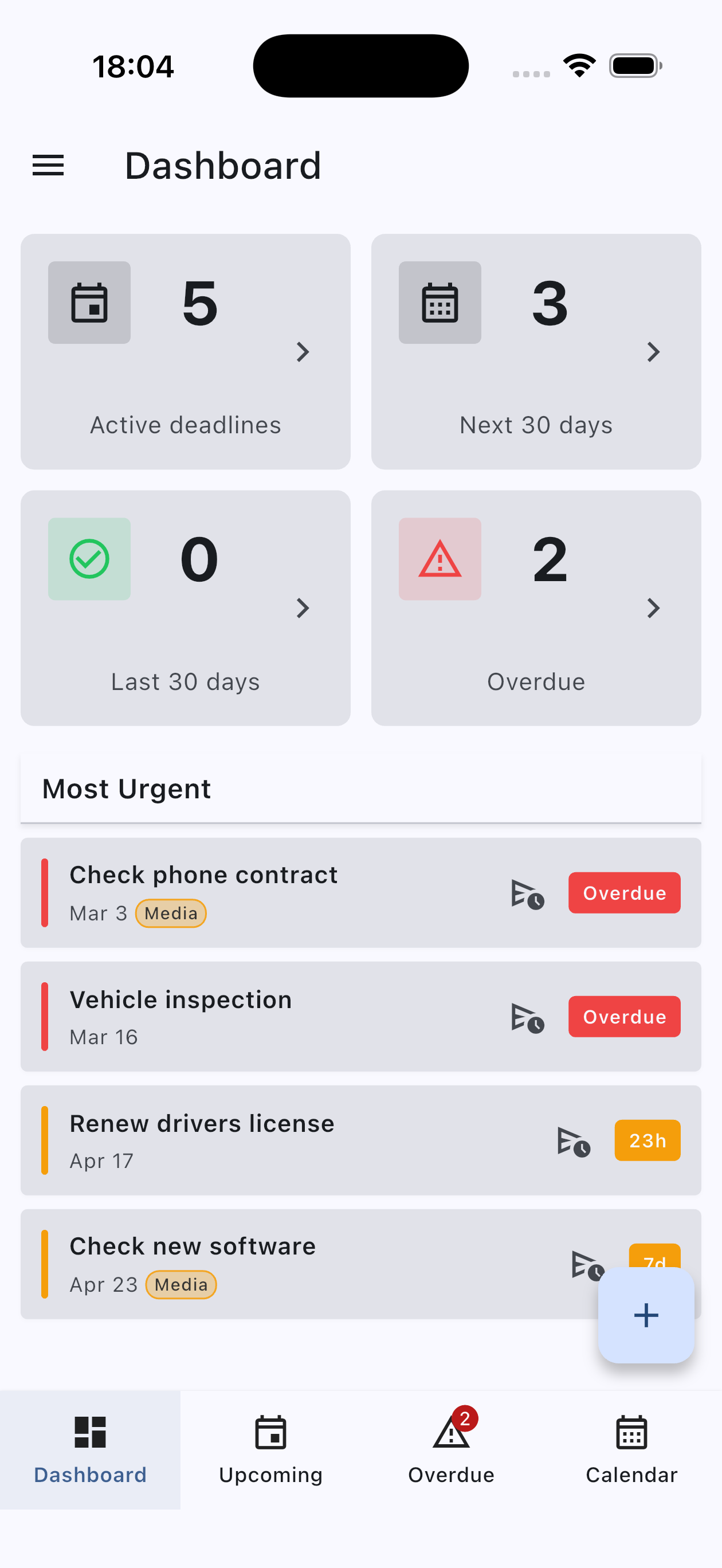
Dashboard
The Dashboard gives you a quick overview of your current situation:
- Active deadlines — total number of upcoming deadlines
- Next 30 days — how many unconfirmed deadlines are due in the next 30 days
- Last 30 days — how many deadlines were confirmed in the last 30 days
- Overdue — all unconfirmed deadlines that are already overdue
- Most Urgent — up to 5 deadlines that need your attention first
The Dashboard is your home screen. Check it daily for a calm, at-a-glance summary.
Upcoming
The Upcoming tab lists all your future deadlines, sorted by due date, and grouped into sections:
- Due soon — less than 7 days away
- Due shortly — 7 to 30 days away
- Due later — 30 to 90 days away
- Future — more than 90 days away
Each deadline shows a colored accent bar on the left that becomes more urgent as the due date approaches — green for upcoming items, amber for soon, and red for overdue.
Overdue
The Overdue tab shows deadlines that have passed their due date and haven’t been confirmed yet. These stay visible until you decide what to do — confirm them (mark as handled) or delete them.
A badge on the Overdue tab shows how many items are waiting for your attention.
Creating Your First Deadline
You can create a deadline in two ways:
- Tap the + button inside Deadline Guard
- Use your device’s Share action in another app and choose Deadline Guard
- Tap the + button (bottom-right corner) on the Dashboard, Upcoming or Overdue tab.
- Enter a title that describes the deadline clearly, e.g. “Streaming subscription renewal”.
- Enter a description for a more detailed description of the deadline.
- Tap the due date field and pick the date the deadline falls on.
- Optionally, enable a specific time (e.g. end of business day for a contract deadline).
- Add a reminder so you get notified before the deadline arrives (see Reminders).
- Tap Add Deadline to save.
That’s it — your deadline now appears in the Upcoming tab.
Tip: You don’t need to fill in every field. A title and a due date are enough to get started.
Creating a Deadline from a Shared Link or Item
If you discover a contract, subscription, invoice, or cancellation page in another app, you do not need to copy the details manually.
- Open the item in your browser, email app, file manager, or another app.
- Tap Share.
- Choose Deadline Guard from the share sheet.
- Review the prefilled information and set the due date.
- Save the deadline.
This is a fast way to capture deadlines the moment you notice them, while keeping the original link or shared content attached for context.
A Practical Example
Scenario: Your gym membership auto-renews in 6 weeks, and you need to cancel by the end of the month to avoid another charge.
- Tap + to add a new deadline.
- Title: “Cancel gym membership”
- Due date: the last day you can cancel (e.g. the 28th of next month)
- Add a reminder: “14 days before”
- Save.
You’ll receive a notification two weeks before the cancellation deadline — plenty of time to act.
Enabling Notifications
Deadline Guard needs permission to send you reminders. On first launch, or when you set your first reminder, the app will ask for notification permission.
If you missed that prompt, go to Menu → Settings → Notification Permissions and tap Enable Notifications.
On Android, you may also want to grant Exact Alarms permission so reminders fire at the precise time you set. The same settings screen walks you through this.
Next Steps
- Managing Deadlines — learn to edit, reschedule, confirm, and delete
- Reminders & Notifications — set up smarter notifications
- Organizing with Tags — group deadlines by category